AI Image Editor
Upload an image, describe the change, and compare the result with your original.
Why use AI Image Editor
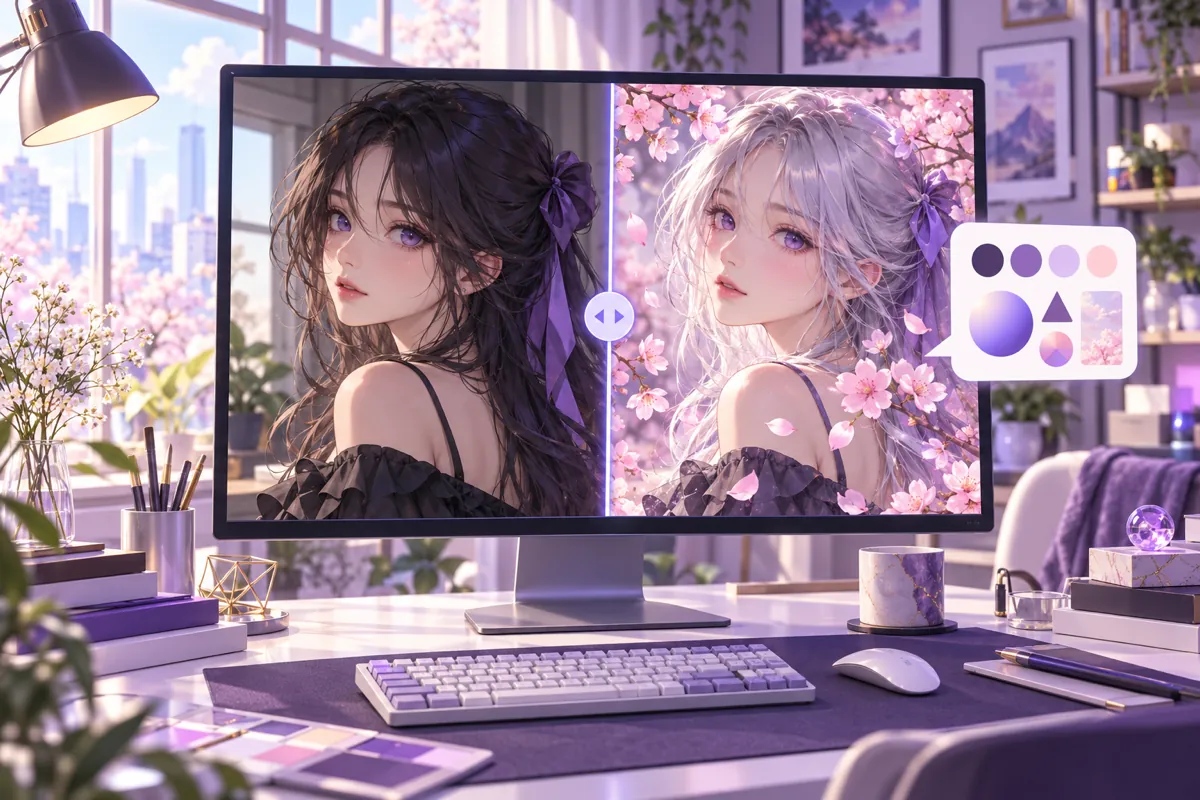
AI image editor online: edit photos with plain words
You do not need heavy design software or a new interface. Upload a JPEG, PNG or WEBP up to 10MB, type the change you want, and this AI image editor online returns one edited image. The result appears next to your original, so you can see exactly what changed before you download it. That keeps the process simple for non-designers who need a quick visual update.
AI photo editor with text prompt: no layers or masks
If you can describe the edit in one sentence, you can run it. This AI photo editor with a text prompt lets you change a hair colour, swap a background, shift the lighting or remove people without brushing masks or stacking layers. Describe what should change and what should stay, and the model keeps the rest of the picture as it was.
AI picture editor with a before and after slider
Every run shows your source image beside the edited result. Drag the slider across the picture to compare colour, lighting, background and subject details in seconds. If the edit misses the mark, adjust the prompt and run it again instead of guessing, which makes it easier to trust a result before you publish or share it.
AI image editor with seven editing models
Choose from GPT Image 2.5, Nano Banana 2, Nano Banana 2.1, Seedream 5.0 Pro, Seedream 5.0 Flash, Qwen Image 3 and Grok Imagine Image 2.0. Each model may handle photo realism, illustration or stylistic edits differently, so you can try several without leaving the page. The cost of the selected model and resolution is shown on the Run button before you start.
AI image editor prompt presets
Quick presets such as anime style, sunset sky, silver hair, cherry blossoms and remove people give you a starting point when you are unsure how to phrase an instruction. You can still write your own prompt for a specific background, mood or object. The presets are made for fast experiments, not for detailed manual retouching.
AI image editor for anime art and OCs
Anime and original character creators can use the AI image editor to try a new outfit, a different hair colour or a new setting on art they already have. Upload the character, describe one change and compare the result with the original. Because it edits one image at a time, it works well as a quick way to test ideas before you commit to a final design.
AI image editor for sellers and social media creators
Sellers, designers and social media creators can use the AI image editor to update a photo for a post, a thumbnail or a listing without opening a full editing suite. Check the change with the slider, download the result and move on. When you need a clean cutout first, the AI Background Remover on OC Maker produces a transparent PNG you can edit further.
How to use AI Image Editor
- 1
Upload your image
Add one JPEG, PNG or WEBP image up to 10MB. Your original stays visible so you can compare it with the result as soon as it is ready.
- 2
Describe the edit
Type a plain-language instruction or choose a preset such as anime style, sunset sky or silver hair. Pick an editing model, and a resolution if the model offers one.
- 3
Run and compare
Click Run to see the credit cost before you start, then wait for one edited image. Use the slider to check the change, download the result or adjust the prompt and run it again.