AI Anime Generator
Turn a text prompt or a reference image into anime art online, with an anime-trained model and general models in one place.
Why use AI Anime Generator
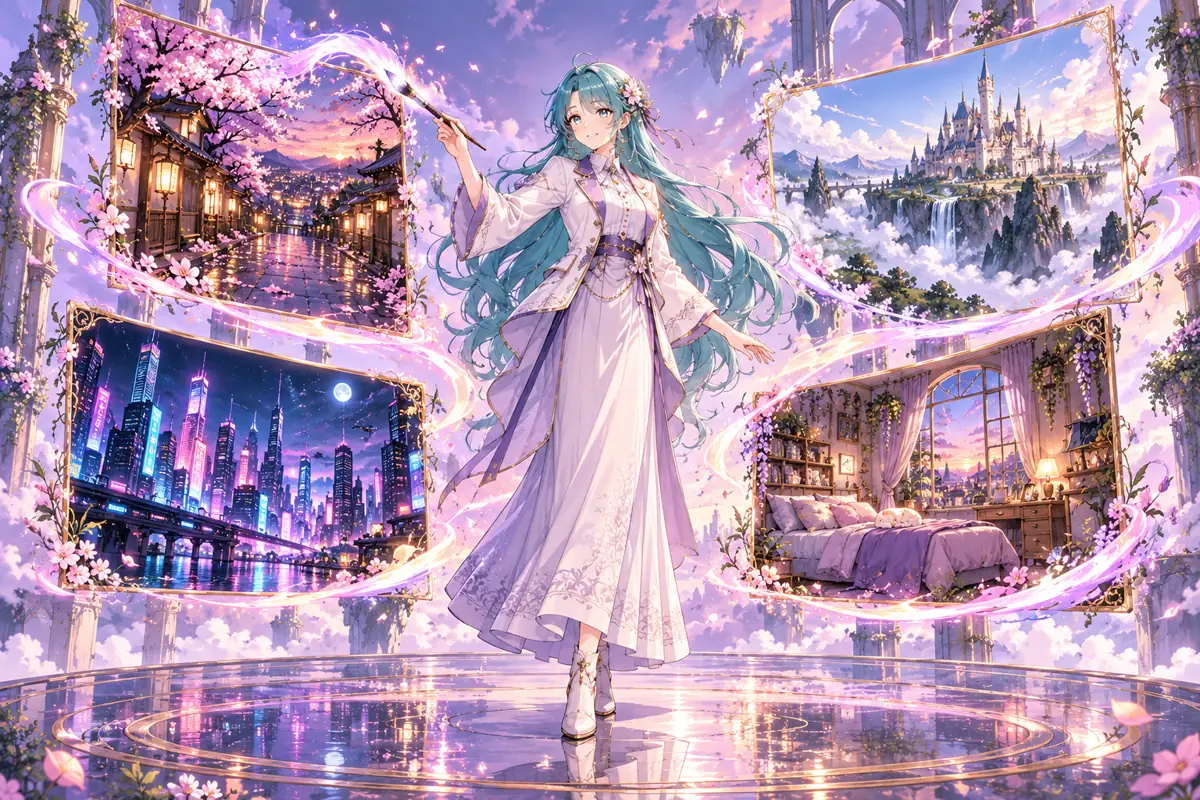
AI Anime Generator with Prompt Tags
You type short, comma-separated tags instead of wrestling a full paragraph into shape, something like 1girl, silver hair, cherry blossoms, soft light, and the default anime illustration model, OC Gen 1, reads that tag list the way it was trained to. It is the most direct route from a rough idea to a finished anime illustration, and this model needs no reference image at all. If you already think in tags from browsing art sites, the prompt box of this AI anime generator will feel natural from the very first run. Put the subject first, such as 1girl or 1boy, then add hair, clothing, setting and lighting, and change one tag at a time so you can see what each one does. Crowded prompts often blur the details, so keep each picture focused on a single character or scene.
AI Anime Generator with Reference Images
When you already have a sketch, a photo or an existing picture you want restyled, switch to a general image model such as GPT Image 2.5, Nano Banana 2.1 or Seedream 5.0. Those models read plain-language sentences and accept a reference image, so you can redraw a pencil sketch in an anime illustration style or try photo to anime without redrawing anything by hand. How closely the output follows your reference depends on the model you pick, so treat the result as a strong starting point rather than a guaranteed exact copy.
AI Anime Generator Model Picker
The model picker sits right next to your prompt, so you can see what each model is suited to and what a run will cost before you commit to anything. Tag-driven anime illustration work goes to the illustration model; sentence prompts and reference images go to the general models. Where a model supports it, you set aspect ratio and resolution in the same place. Nothing is charged until you actually press Generate, so you can compare options freely in this AI anime generator.
AI Anime Generator Aspect Ratio and Resolution
Aspect ratio and resolution are set per model, so open the model picker, choose a model that exposes those controls and pick your values before you press Generate. Models without the controls run at their own default framing, which is usually fine for a quick idea check. The cost shown on the Generate button reflects the resolution you selected, so you can weigh a larger image against your remaining credits before spending anything.
AI Anime Generator Credit Costs
Sign up and you receive 10 free credits once, valid for one month, and those credits work with OC Gen 1 and with Seedream 5.0 Flash and Nano Banana 2.1. The other general models unlock with any credit pack or subscription. OC Gen 1 returns 4 images for 25 credits on accounts that have bought credits, 1 image for 7 credits on accounts that have not, while general models return 1 image per run at a cost set by model and resolution. If a generation fails, you are not charged for it, so a bad run never quietly costs you.
AI Anime Generator Use Cases
Most people arrive wanting a scene or character picture: writers and role-players visualising a moment, game and visual-novel makers needing concept art, and creators making avatars, wallpapers, stickers or channel banners. Because every run ends in a still image you can download, the output also works well as a reference to draw over or to pass into the editing tools. Start with a handful of tags in the anime art generator, see which direction reads best, and build the rest of the picture from there. Pick a portrait or landscape ratio where the model offers one, generate a few options and download the one you like.
AI Anime Generator Character Consistency Limits
Each image is generated from the prompt you give it, so the same character is not carried across separate runs, and small changes in your tags can shift the face and outfit. For a reusable character, the Anime Character Maker and the Character Creator on the same site save a character and let you edit its pose, outfit and expression instead of rebuilding the prompt from scratch every time. Use this AI anime generator for scenes and one-off pictures, and those tools when you need the same person repeatedly.
AI Anime Generator Download and Editing Steps
Every result carries its own download button, so you can save the images that worked straight to your device. If you want to keep working on one, open the AI Image Editor, the Background Remover, the Pose Changer or the Clothes Changer and upload that file there. It is not handed over automatically, so that upload step is yours to take. That keeps your download clean and gives you four follow-up paths depending on whether the problem is the background, the pose or the outfit.
How to use AI Anime Generator
- 1
Write Tags or a Sentence
Choose the anime illustration model and type short, comma-separated tags, or switch to a general model and describe the picture in a plain sentence. For a text to anime image run, the prompt box is the only input you need.
- 2
Pick Your Model and Settings
Open the model picker to compare what each model does and what the run costs, then set aspect ratio and resolution where the model offers them. The credit cost stays visible on the Generate button before you start.
- 3
Generate, Then Download
Press Generate, look through the results and download the ones that hold up. To keep editing, take that downloaded file into the AI Image Editor, the Background Remover, the Pose Changer or the Clothes Changer and upload it there.